One of the coolest things about powershell is being able to customize the shell. Here’s what my shell looks like now.
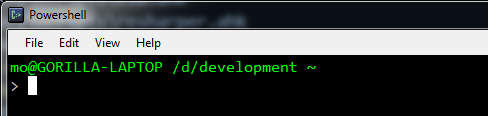
When I’m working on a project using git, my prompt looks like this.

It now tells me what branch i am on. Whoa… All I had to do was drop a modified version of profile.ps1 into “c:\users\mo\documents\WindowsPowerShell”. If the “WindowsPowerShell” folder doesn’t exist, then create it. That’s what I did. This is also using posh-git. If you checkout the source you’ll find an example of the profile.ps1 that you can use.
Leveraging this file you can load other scripts every time you pop open a powershell. Like if you wanted to load a sweet twitter script. Here’s my current script…
    Import-Module d:/scripts/posh-git/posh-git
    d:\scripts\twitter-on-powershell\twitter-on-powershell.ps1
    d:\scripts\vsvars2010.ps1
    function prompt {
        $user_location = $env:username + '@' +
    [System.Environment]::MachineName + ' /' + ([string]$pwd).replace('\',
    '/').replace(':', '').tolower() + ' ~'
        $host.UI.RawUi.WindowTitle = $pwd
        Write-Host($user_location) -foregroundcolor green
        # Git Prompt
        $Global:GitStatus = Get-GitStatus
        Write-GitStatus $GitStatus
        return "> "
    }
    if(-not (Test-Path Function:\DefaultTabExpansion)) {
        Rename-Item Function:\TabExpansion DefaultTabExpansion
    }
    function TabExpansion($line, $lastWord) {
        $lastBlock = [regex]::Split($line, '[|;]')[-1]
        switch -regex ($lastBlock) {
            # Execute git tab completion for all git-related commands
            'git (.*)' { GitTabExpansion $lastBlock }
            # Fall back on existing tab expansion
            default { DefaultTabExpansion $line $lastWord }
        }
    }
    Enable-GitColors
The cool part is that everything you write in a powershell console can be dropped right in to a .ps1 file and run as a script. I’m actively learning…