So in my last post I talked about using Google Desktop’s query model for searching files. That worked okay, but you don’t get access to all the cool document properties that are supposedly available when you work directly against the Google Desktop Search SDK. (Those .idl files can be challenging!)
Figured I’d dive deeper and see what the full SDK has to offer. Spoiler alert: it’s been… interesting.
The Setup
First things first - you’re going to need Google Desktop installed on your machine so it can take care of indexing your files. You probably could take the necessary Google assemblies and register just the ones you want, maybe create your own Windows service to add files to the Google index… I don’t know, that’s probably beyond my skill set at the moment!
Once you’ve got Google Desktop Search installed, you need to add two COM references to your project:
- Google Desktop Search API 1.1 Type Library
- Google Desktop Search Query API 1.0

Getting Your Cookie (Registration)
So here’s the deal - if you want to use the Google Query API, your app has to register with it first. The Query API will then return a cookie that you need to hang onto. You’ll use this cookie to make any search requests to the Google Query API.
To register, you need to provide a description of your application and a globally unique identifier (GUID) for your app. Here’s a very rudimentary example… (I highly suggest that you don’t actually use this code, but hopefully it helps with learning)
public static int Register()
{
    Object[] description = new Object[]
    {
        "Title", " tests", "Description", "Simple tests", "Icon", "My Icon@1"
    };
    const String applicationGuid = "{5323E036-345C-4323-548D-32AA55603215}";
    GoogleDesktopRegistrar registrar = new GoogleDesktopRegistrar();
    registrar.StartComponentRegistration(applicationGuid, description);
    object regObjObj = registrar.GetRegistrationInterface("GoogleDesktop.QueryRegistration");
    IGoogleDesktopRegisterQueryPlugin query = regObjObj as IGoogleDesktopRegisterQueryPlugin;
    if (query == null) {
        return 0;
    }
    else {
        Int32 cookie;
        cookie = query.RegisterPlugin(applicationGuid, true);
        registrar.FinishComponentRegistration();
        return cookie;
    }
}
So what’s going on?… Well, in the above code there is a hard-coded GUID (“{5323E036-345C-4323-548D-32AA55603215}”) and an object array of strings. The object array is the description of your application.
When you call FinishComponentRegistration() the following dialog will pop up:
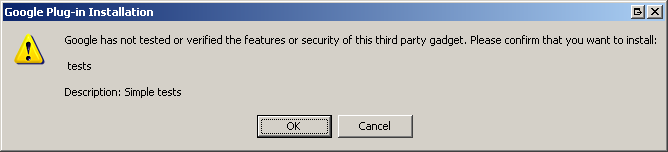
This is Google’s way of prompting the end-user whether or not they want your application installed on their PC. If OK is pressed you can use the cookie received in the call above it. If cancel is pressed a COMException is raised and that cookie is useless!
What does a cookie look like?
Well… for me the cookie was the value “1030818419”. For the testing I copied the value and stuck it in a constant… but as the SDK suggests, you will probably want to encrypt this and store it somewhere where you can read it out and decrypt it, because you’re going to need it for each search request.
private const Int32 GoogleCookie = 1030818419;
Dude.. I got a cookie! Mmmm…..
Actually Searching
Now let’s actually start searching… Instantiate a GoogleDesktopQueryAPI object and invoke the Query method… or QueryEx (for the ability to read and write to the index. In this example we just registered for a read-only cookie for searching!)
The Query method will return an object that contains a collection of search results. Unfortunately, there’s no enumerator or indexer so foreach doesn’t work here… sigh.
public static void Search(String forText)
{
    Int32 cookie = GoogleCookie;
    GoogleDesktopQueryAPI queryAPI = new GoogleDesktopQueryAPI();
    IGoogleDesktopQueryResultSet results = queryAPI.Query(cookie, forText, "file", null);

    IGoogleDesktopQueryResultItem2 item;
    while ((item = (IGoogleDesktopQueryResultItem2)results.Next()) != null)
    {
        Console.WriteLine(item.GetProperty("uri"));
    }
}
Looks kind of ugly hey? In order to get properties on each search result you have to call the “GetProperty()” method on each result item. AND you have to pass it a string value as the property name. This is not ideal!
A possible way to get around this would be to create a private class or structure or string constants… This isn’t that more elegant, and in fact this could be broken out and organized into logical groups of properties.
private class GoogleResultItemProperty
{
    public const String ActualWork = "actual_work";
    public const String AlbumTitle = "album_title";
    public const String Artist = "artist";
    public const String Assistant = "assistant";
    public const String Attendees = "attendees";
    public const String Author = "author";
    public const String Categories = "categories";
    public const String Company = "company";
    public const String FolderName = "folder_name";
    public const String Format = "format";
    public const String IMAddress = "im_address";
    public const String Keywords = "keywords";
    public const String Language = "language";
    public const String LastModifiedTime = "last_modified_time";
    public const String Length = "length";
    public const String Location = "location";
}
The Problem
However, I keep getting COMException’s when I try to access properties that I’m sure should be there… for instance I know that I’ve set the author property on this document:
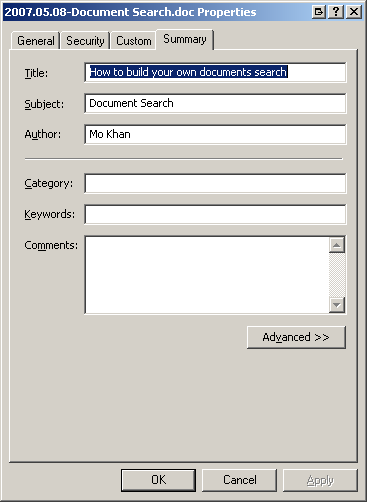
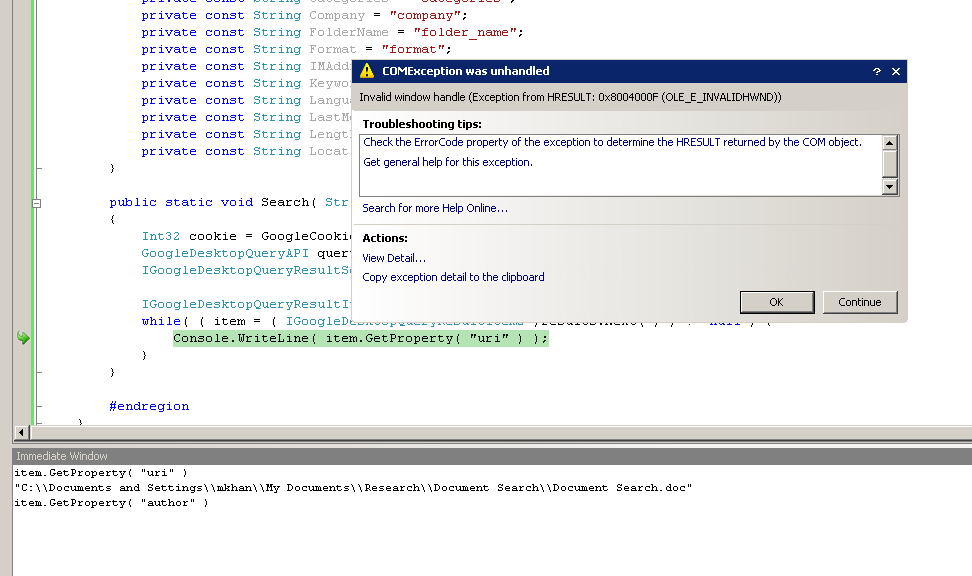
But when I try to access the author property on that document a COMException is raised. Why is this happening? The whole purpose of using the Google Search SDK is so that I can retrieve that property without having to directly access that file!
Conclusion
In conclusion, I still have much to learn about COM and the Google Desktop Search API. I found the documentation on the API rather hard to read and understand. (It can be found here…)
Hopefully, this helps a little!